In this guide, learn how to ask for further information from your event attendees. Data Capture questions you to request valuable information from your event attendees.
The platform has basic built-in data capture questions, but in instances where the questions are more specific, you can create your own.
If you haven't already created your first event, please click here for guidance on how to do this. We also recommend adding your first ticket to your event. For more info on how to do this, please click here.
Enabling Default Data Capture Questions
Data capture questions can be administered and added from the event dashboard. To do so:
1. On the right-hand side of the event dashboard, click "Actions > Advanced" and select "Add data capture questions"
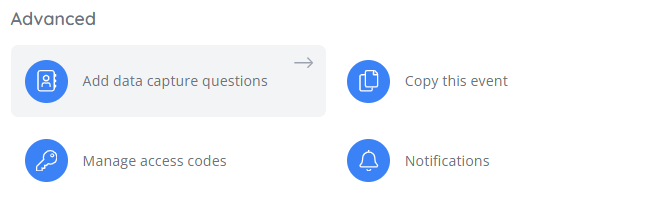
2. This will then display the data capture dashboard for your event:
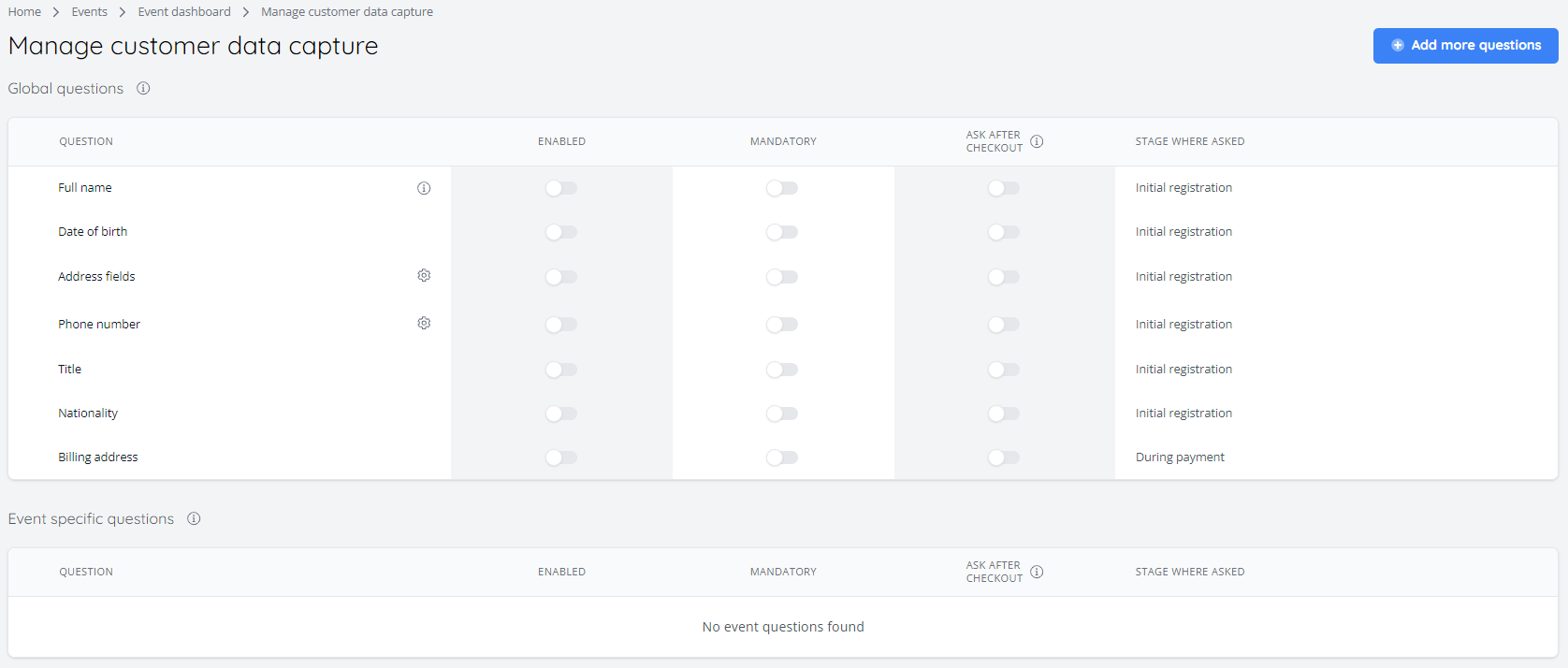
This dashboard is split into two sections, these are:
Global questions - These questions will appear on every event
Event specific questions - These questions are related to the current event you are editing
In the "Global Questions" section of the dashboard, the system default questions can be enabled as required. These are:
Full name - Ask for the full name of the purchaser
Date of birth - Ask for the date of birth of the purchaser
Address fields - Ask for the full address of the purchaser. This question uses google address lookup to make it easier for customers to select their address
Phone Number - Ask for the telephone number of the purchaser
Title - Ask for the purchaser's title
Nationality - Ask for the purchaser's nationality
Billing address - Ask for the purchaser's billing address. This question's answer field also makes use of Google address lookup
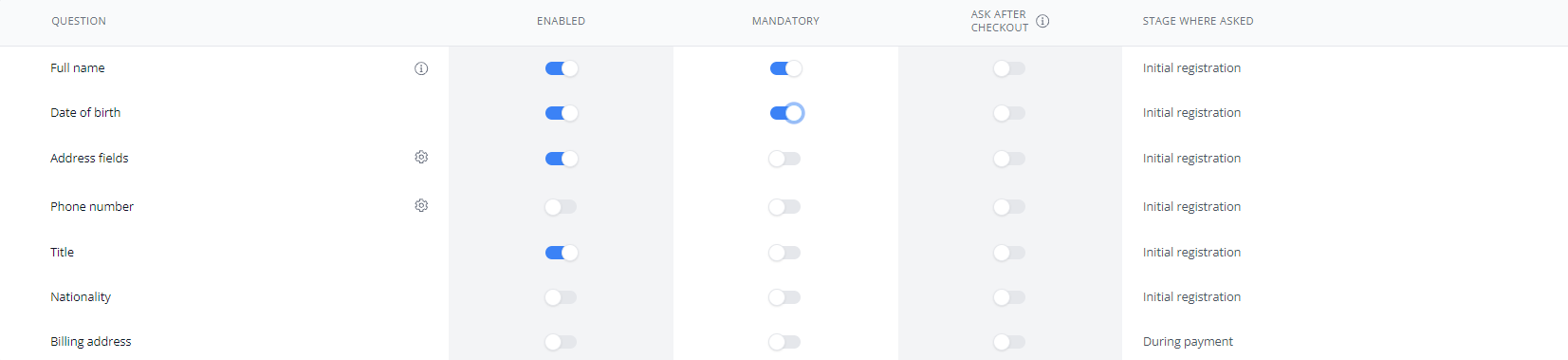
Next to each question are a series of toggles. To enable a question, toggle on the "Enabled" setting. To mandate a question, toggle on "Mandatory".
Note: Each mandatory question will be noted to the purchaser with an asterisk (*). When questions are mandatory, purchasers will not be able to progress through the purchase flow without first answering any/all questions marked with an asterisk (*).
There is an additional third toggle to allow data capture responses to be provided after checkout, called "Ask after checkout". Please note, your customers won't be able to download their tickets without first providing answers to these questions via "My Profile".
Creating Custom Data Capture Questions
If more specific questions are required, you can create these by doing the following:
1. On the right-hand side of the event dashboard, click "Actions > Advanced" and select "Add data capture questions"
2. From here, click "Add more questions" in the top right hand corner of the screen, then click "Add new questions"
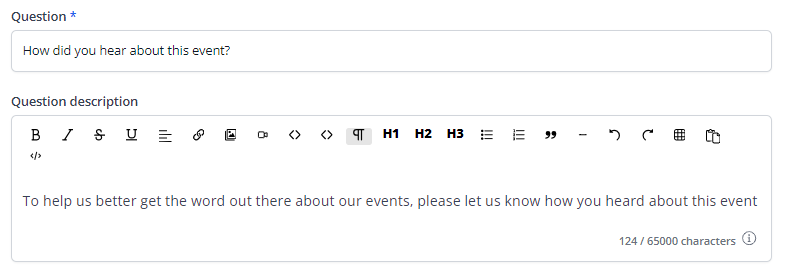
3. This will open up the question creation form. From here, write your question in the "Question field", for example "How did you hear about this event?"
4. Below this a question description can be added. This wording will appear before the question on the shop site, and can be used to further clarify your question, if necessary
5. Once you have inputted the above, you can select the answer type for your question. These options are as follows:
Short text - A short free-text input field
Long Text - A long free-text input field
Selection - A drop-down list comprised of a series of options
Number - An input field for a number. This field also allows for the entry of a highest and lowest number
Checkbox - A single checkbox to indicate acknowledgement of the question
Multiple checkboxes - Multiple checkboxes for acknowledgement or choice selection
Radio buttons - A list of options that allows for the selection of one answer
Yes/No - Allows for the selection of Yes or No in response to the question
Phone number - Allows for the input of a telephone number (contains standard phone number validation)
Email - Allows for the input of an email address (contains standard email address validation)
The below question type uses "Selection" as the answer type, and a series of responses have been added under "Options":
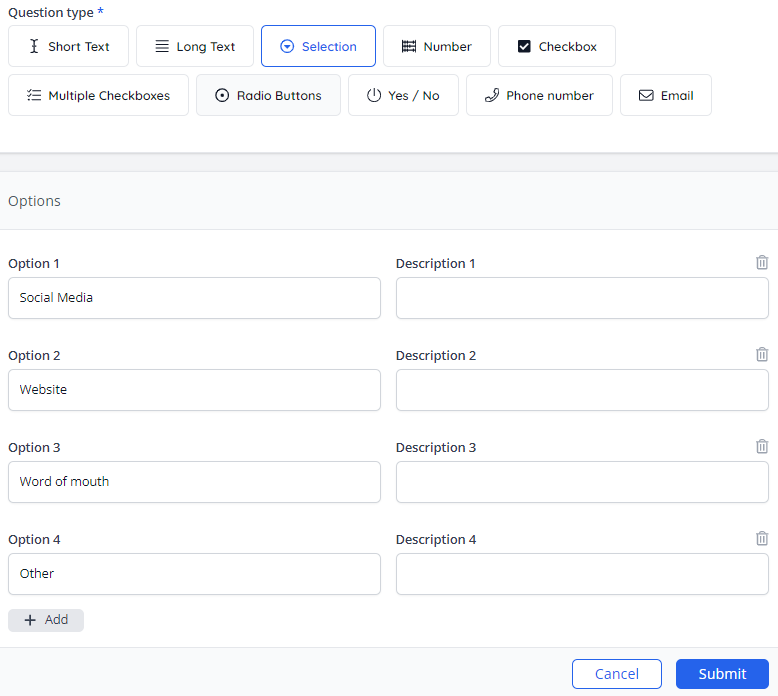
6. Once you have configured your question, click "Submit" to save it.
7. Your new question will then appear on the previous page in the list, ready to be added to your event. To do this, click the checkbox next to the question and click "Add selected questions to Event":
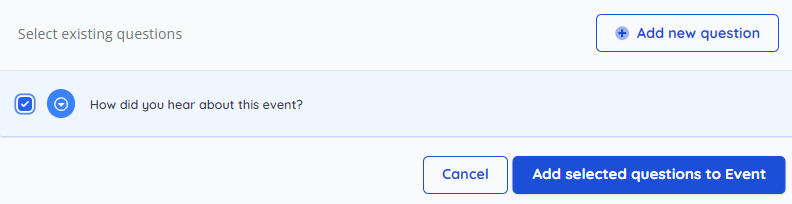
8. Once you have added your question, you will be brought back to the main Data Capture dashboard. Here, you can set the question as "Mandatory" (if required), set the "Ask after checkout" (if required) and set the "Stage where asked"
The stage where asked condition determines where the question is asked in the purchase flow. The options for this condition are as follows:
Initial registration - This question will be asked when a customer registers as a customer on your shop site
Every event - This question will be asked on every event
This event only (default) - This question will only be asked on the current event
Every event is this schedule - This question will be asked on every event in this schedule
Every item on this event - This question will be asked when purchasing any item on this event
On specific items on this event - Set a specific item for this question to be asked on when purchasing for this event
On specific items across this schedule - Set a specific item for this question to be asked on when purchasing for any event in the schedule
Every ticket on this event - This question will be asked when any item is purchased from this event
Every ticket on every event - This question will be asked on all tickets across all of your events
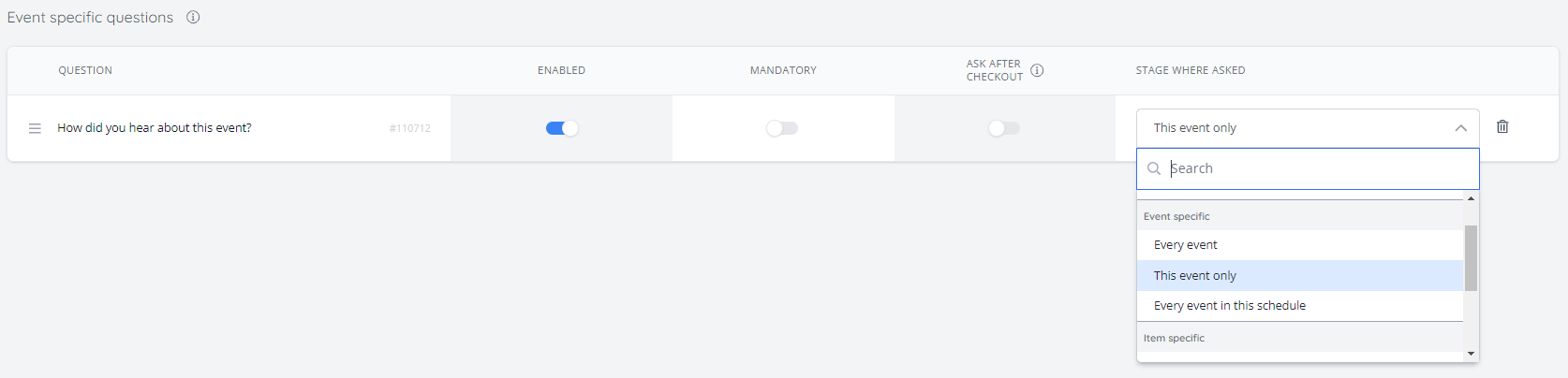
You have the flexibility to revisit and modify these settings at any time. If you need to make changes to the data capture question's settings, such as its stage where asked, mandatory status, or simply disable the question, you can easily go back to this page and adjust them as needed.
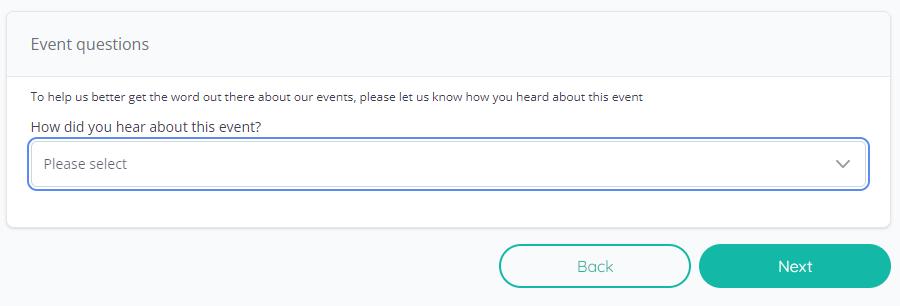
Accessing your purchaser's responses
Data capture question responses can be found in a number of places across the platform, depending upon the question type and the stage it was asked.
A question that was applied as a global question on initial registration would be visible when accessing a customer's details or in the customer reports. If applied as an event-specific question, then this can be viewed in the customer's order page (Sales & Reports > Orders) by selecting the "Data capture" button:
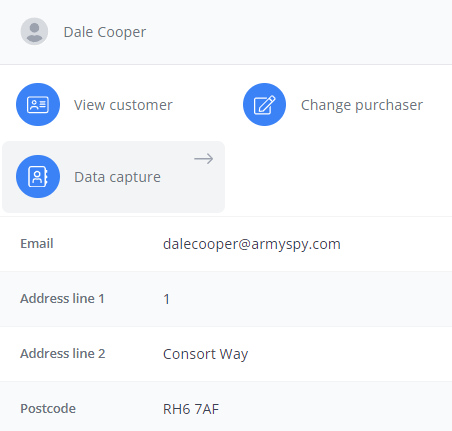
If applied to a specific ticket, then the Ticket Attendance Report (Sales & Reports > Reports) would be the best place to view and export the question responses, simply by adding the relevant questions to the report output, as seen in the screenshot below:
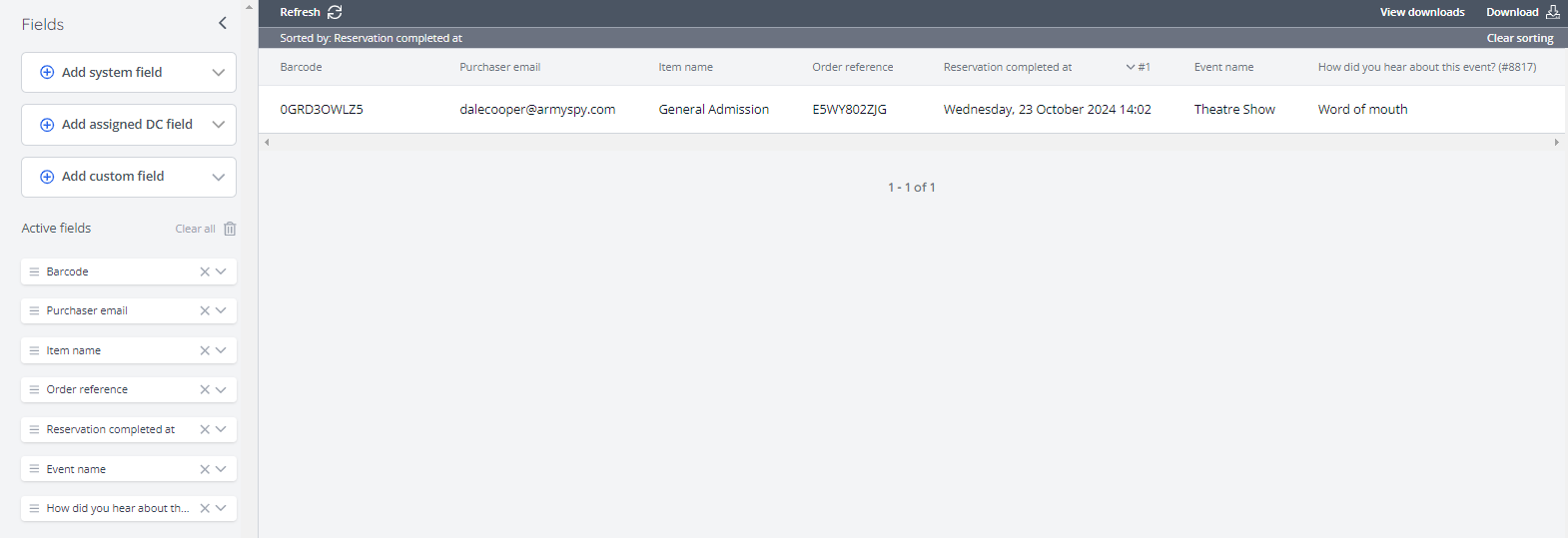
For more information on the reporting interface, please refer to this guide here.
Once your data capture has been set up, click here to read the next guide on configuring event settings.

