When a customer purchases tickets for one of your events, they will create an order in the platform. From an order, you as an event organiser can see useful information about your attendee, including data capture, details of when the order was created and how much the customer spent on their order.
If you haven't yet created your first event and are unsure of how to do so, please click here.
Finding your customer's orders
To find a customer's order in the platform, you need to do the following:
1. In the left-hand menu, click "Sales & Reporting > Orders"
2. On the orders page, open the filters on the left-hand side:
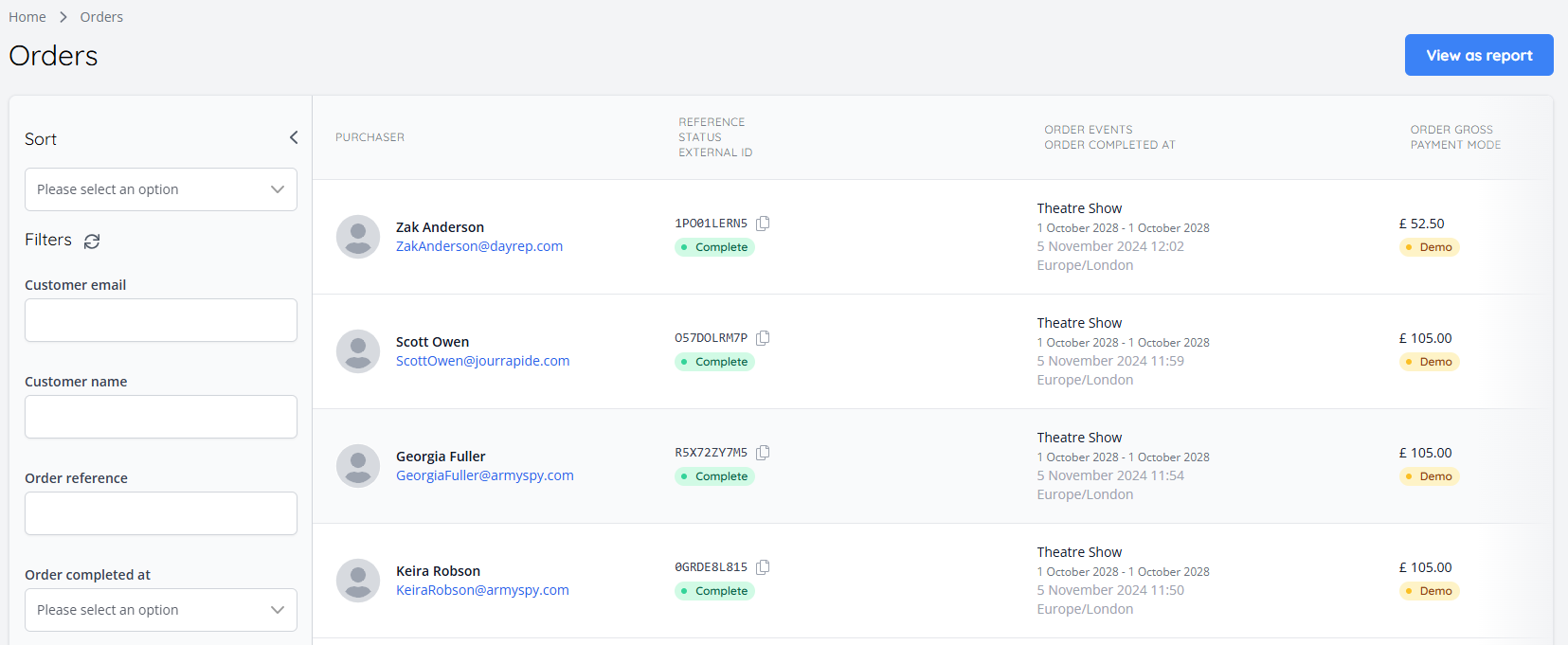
3. You can use these filters to find the customer's order. The three most common pieces of information to use to find orders are:
4. Once you have found the correct customer's order, you can select it from the list
Order Overview
After selecting an order, you will see the dashboard for that particular order. This is made up of several sections, each with different purposes.
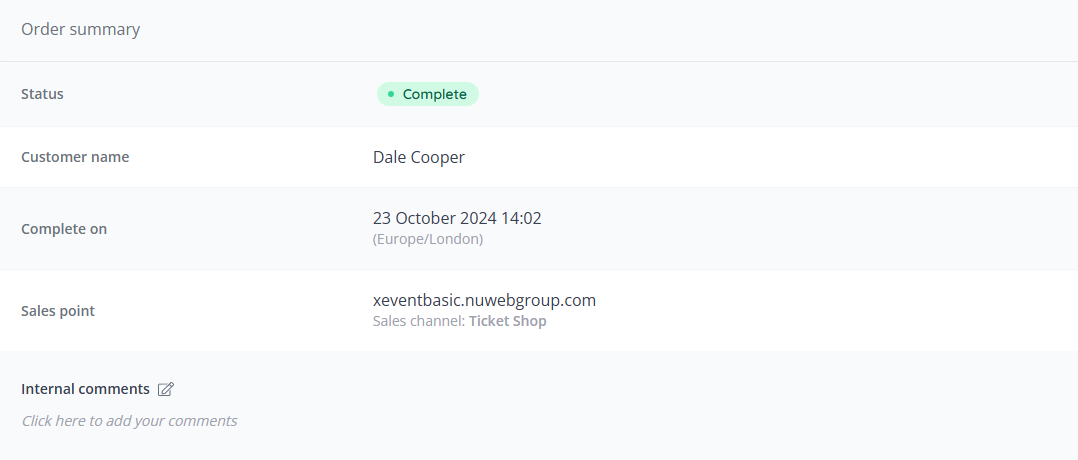
The main section on the orders page is the order summary section. This gives an overview of the order, and includes the following information:
Status - Indicates the status of the order with a badge (for example Complete, Refunded, Partially refunded)
Customer name - The name of the customer
Complete on - When the order was completed and payment was taken
Sales point - The sales channel where the order took place (for example, Ticket Shop, Box Office, Kiosk)
Internal comments - Any comments left internally by any other Admin users
To the right of the order summary, there are a series of actions that can be performed with order using the following action buttons:
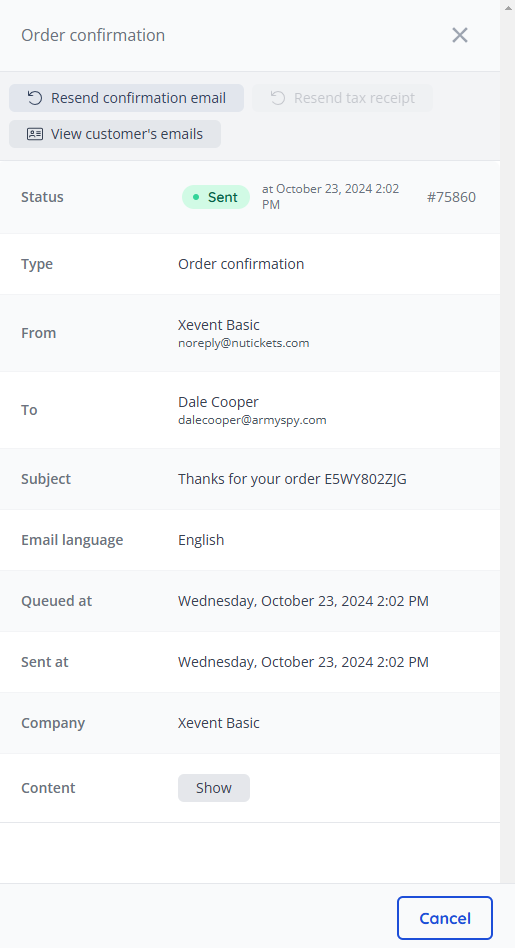
View email log - This allows you to see any platform emails that have been sent to the customer and the delivery status of those emails. at the top of this pop-over, there is the option to resend the order confirmation email to the customer:
Refund/cancel items - This allows you to cancel/refund items from the customer's order. For a full guide on how to do this, please click here
Transfer Items - This allows you to transfer items in the customer's order to other customers. This is useful if your customer is having issues sharing their tickets themselves via their account.
To share an item, you need to enter the name and email address of the intended recipient. You can also see the status of the transferred item on this page
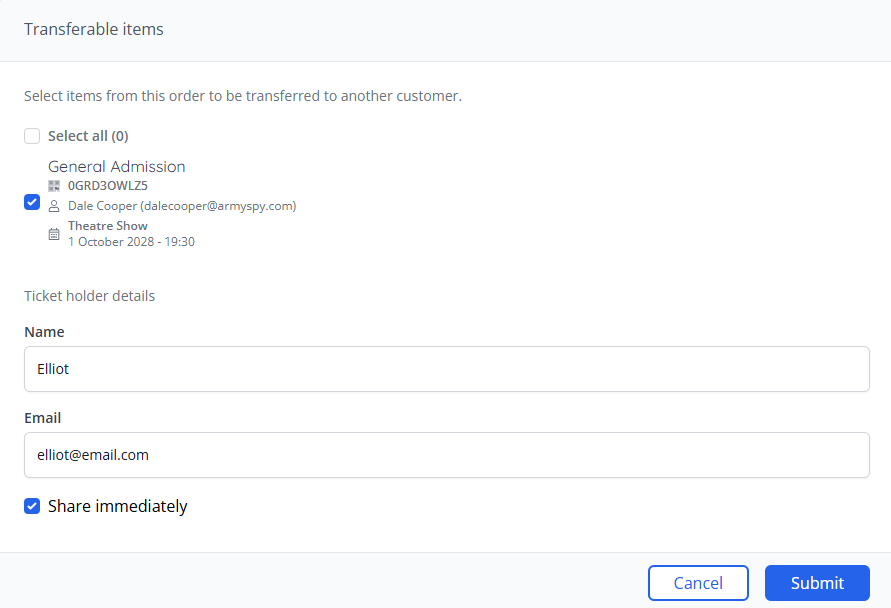
Note: If this option does not appear on the orders page, transferring/sharing items for this event may be prohibited. This will be indicated on the ticket info or event info sections of the event.
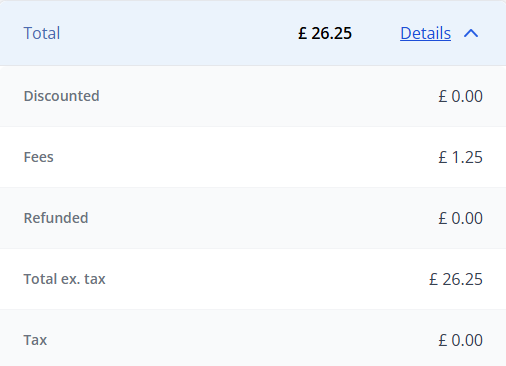
Below the order actions section of the orders page, there is a full breakdown of the order financials, including total price, discounts (if any), fees, refunded (if any), total ex. tax and tax:
Below the pricing breakdown, customer details for the order can be found. This section basic information about the customer, including their name, email and address.
Above that there are some actions, which do the following:
View customer - This will redirect you to the customer record for the purchaser. Here you can see any other orders created by this customer
Change purchaser - This allows you to change the customer on this order. This is useful if the wrong customer has been attributed this order by mistake during the checkout flow in the box office.
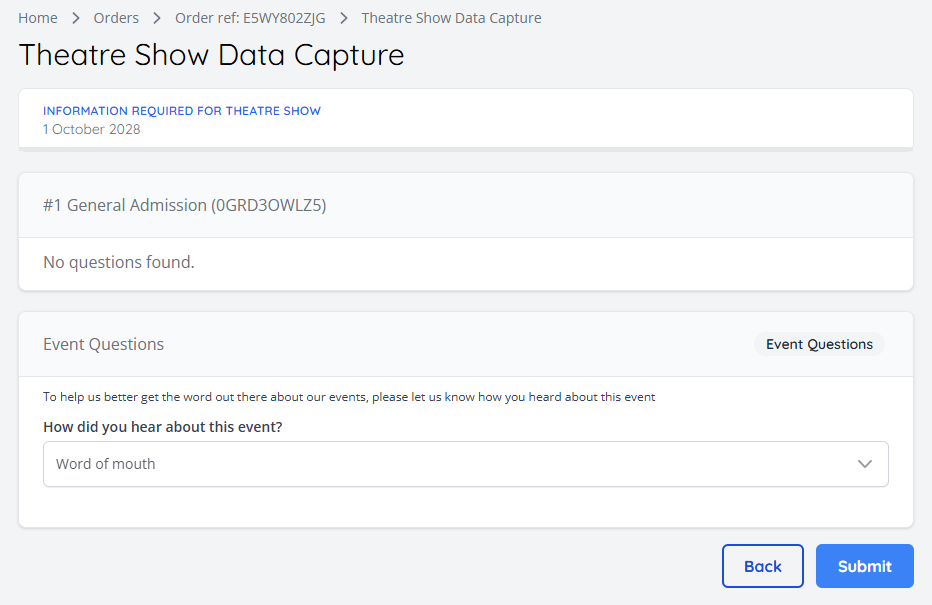
Data capture - This button allows you to view any relevant data capture responses for this order:
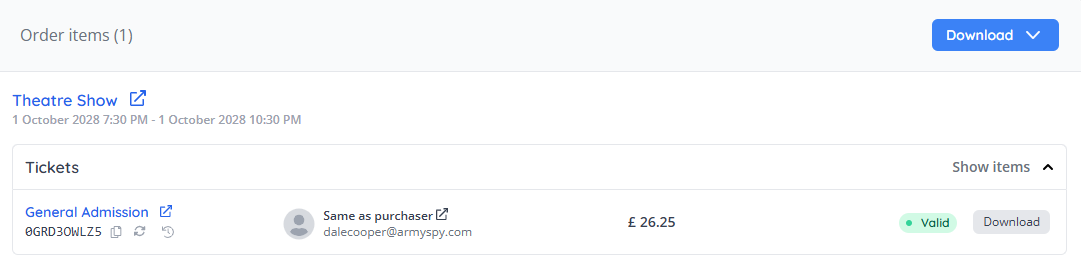
To the left of the customer details is the order items section. This expandable section displays all items that make up the order. Above the items, there is an action button to do the following:
Download items - This button allows you to download the PDF containing the QR code for the items in the order. This is useful if your customer is having difficulty doing this themselves from their account
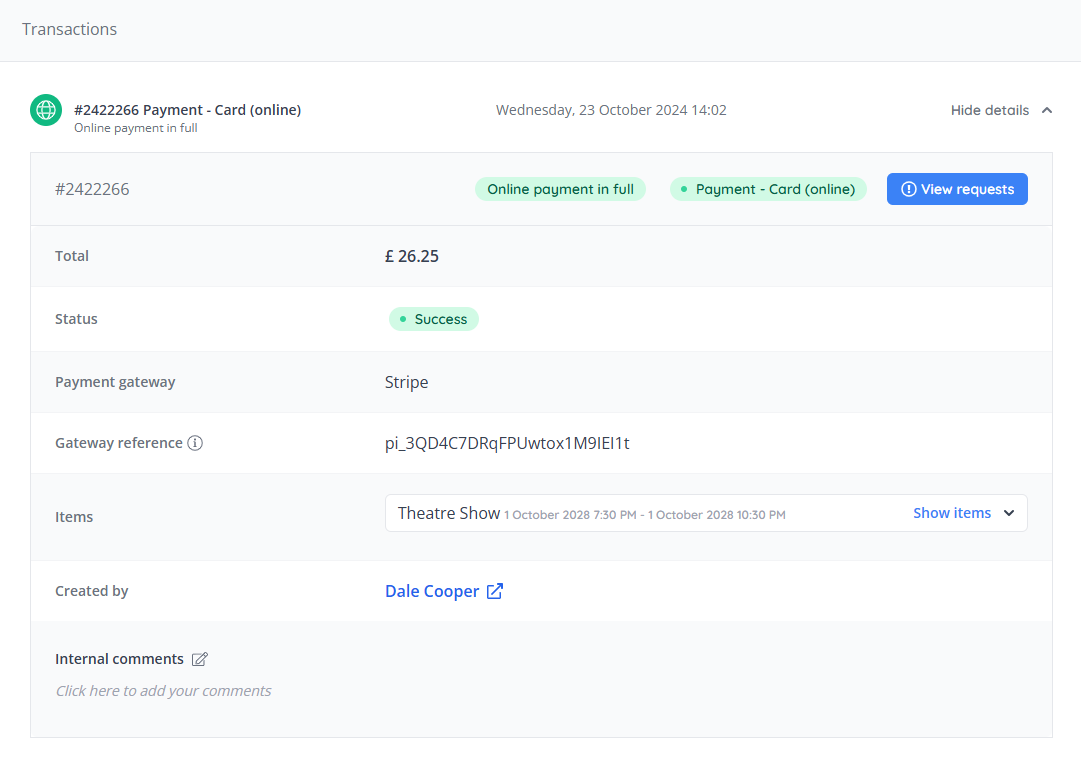
Below this, transaction details for the order can be found. This section is collapsed by default, however, it's a very useful place to find information about the payment processing of an order.
Once expanded, it will display the transaction details, with a button to see the transactional requests made to the payment processor:
Once familiar with the orders page, please click here to find out how to process refunds for your customers.

