This guide will outline the further settings that can be applied to your event and the applications of each setting.
Before configuring event settings, you first need to set up an event, click here to learn how to do this. We also recommend creating your first ticket, the process for which is detailed in this guide here.
Edit Event Name, Dates & Times or Venue
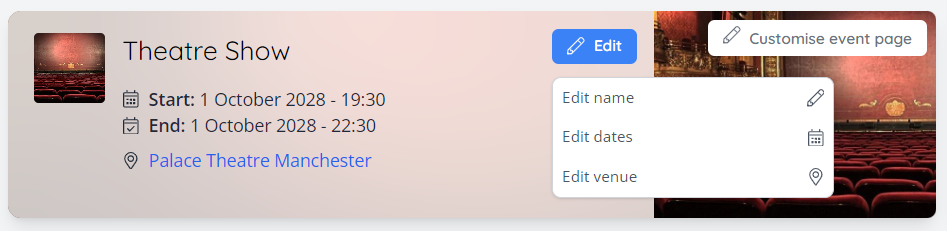
Your basic event information like Event Name, Dates & Times or Venue can be edited by clicking the pencil icon at the top of the event dashboard by the event name:
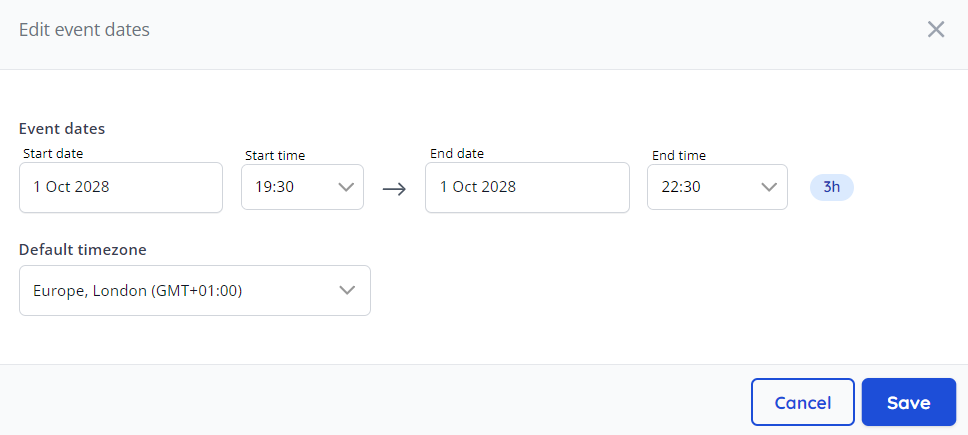
After any of this information has been updated, click "Save" to apply your changes:
Event Settings Overview
All event-level settings are accessible on the event dashboard by clicking "Edit details":
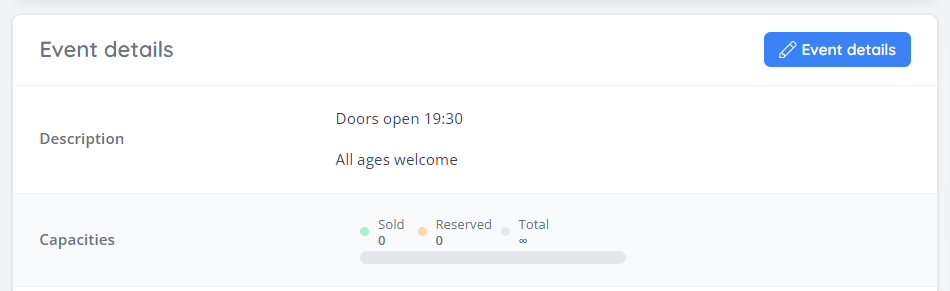
This will allow you to configure the following settings:
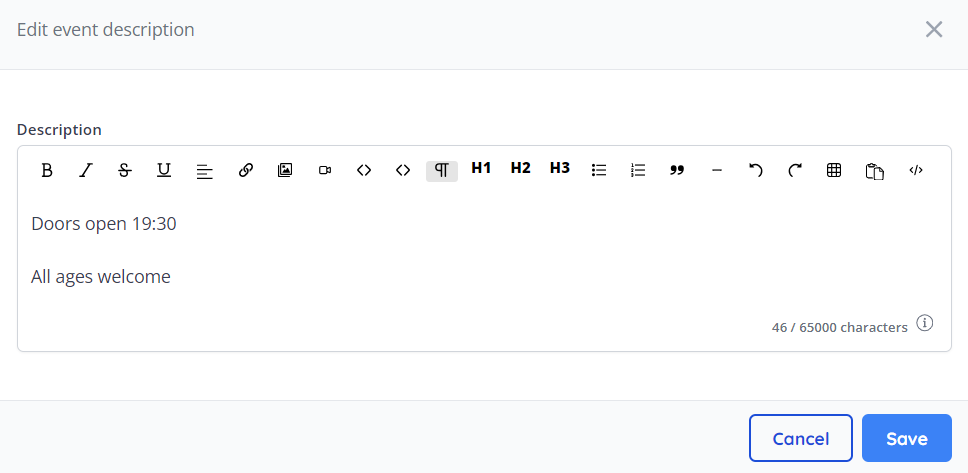
Description - Edit or add a description to your event. This should contain important information about the event that the customer should know before purchasing a ticket.
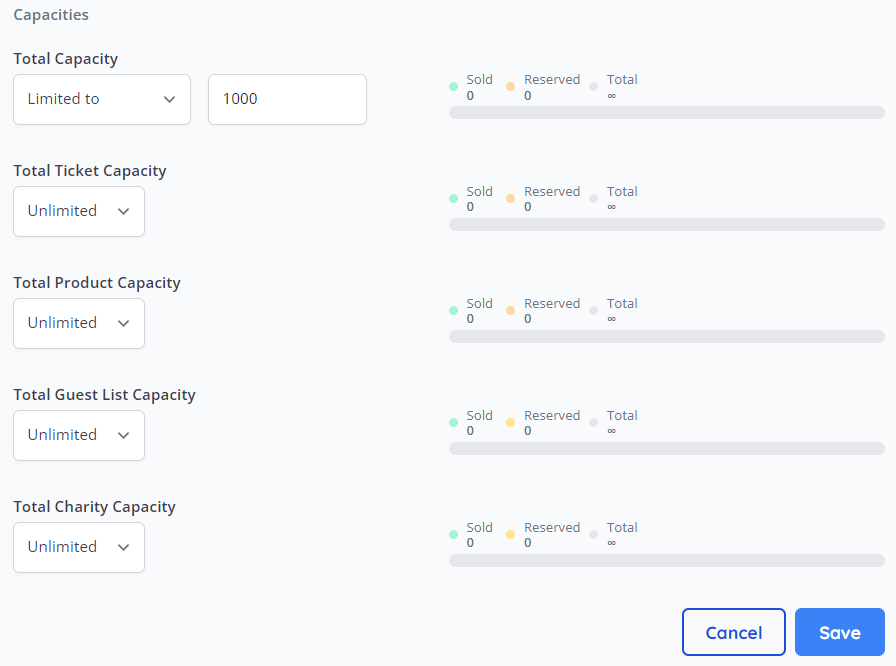
Capacities - This setting allows you to set event-level capacities for all sale items on your event (Total Capacity), or per specific sale item. By default, these are set to "Unlimited":
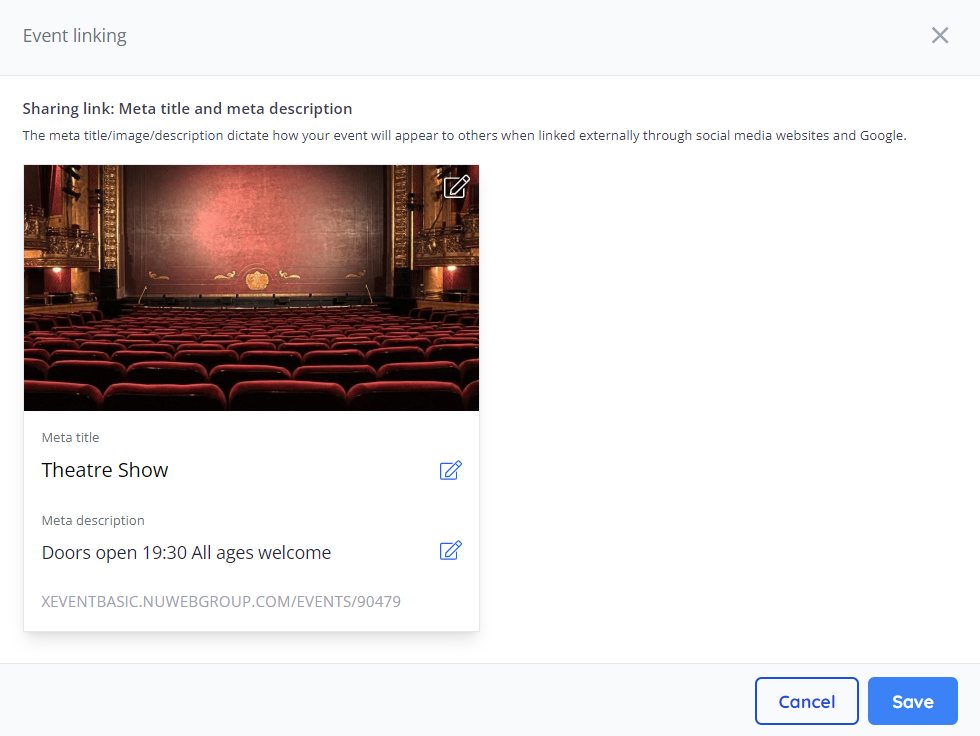
Sharing settings - The meta title/image/description dictates how your event will appear to others when linked externally through social media websites and Google, this setting allows you to add or change any of this information.
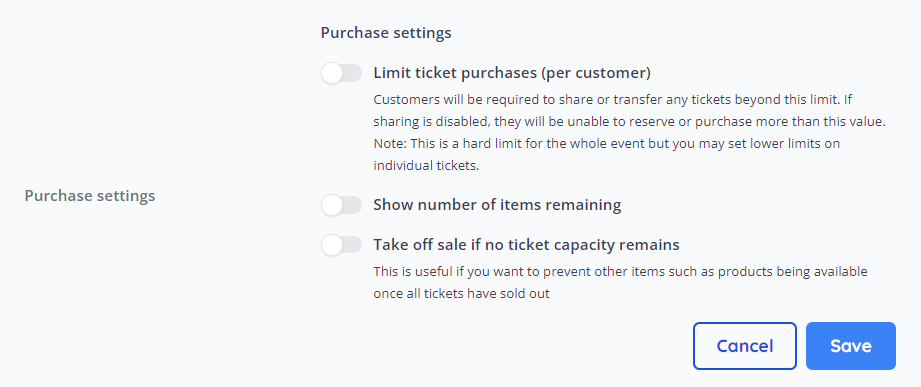
Purchase settings - This section allows you to configure the following three settings:
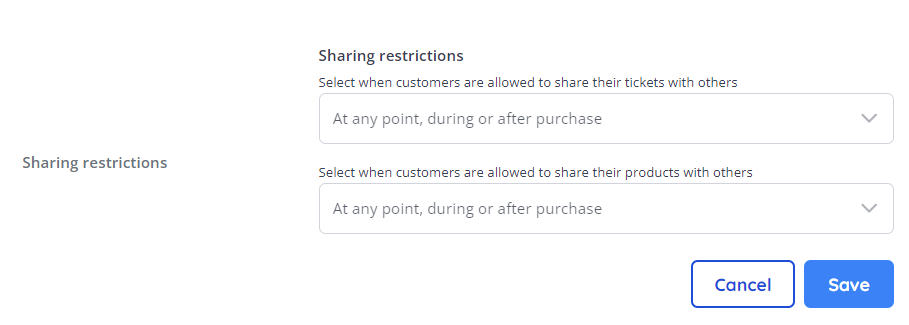
Sharing restrictions - This drop-down dictates how customers can share their tickets & products. By default, this is set to "At any point before, during or after purchase".
Visibility groups - If you need some of your user base to only be able to access certain events, visibility groups can be used. Further info on visibility groups can be found in the "Further reading" section of this guide series.
External ID - This is an ID that can be applied to the event to better reconcile your event with other platforms, if necessary. This external ID can also be surfaced in reports.
Scanning mode - This setting allows you to determine the scanning mode in the Access Control Pro partner app. The options are:
Note: For more info about Epos, please reach out to GeekTickets.

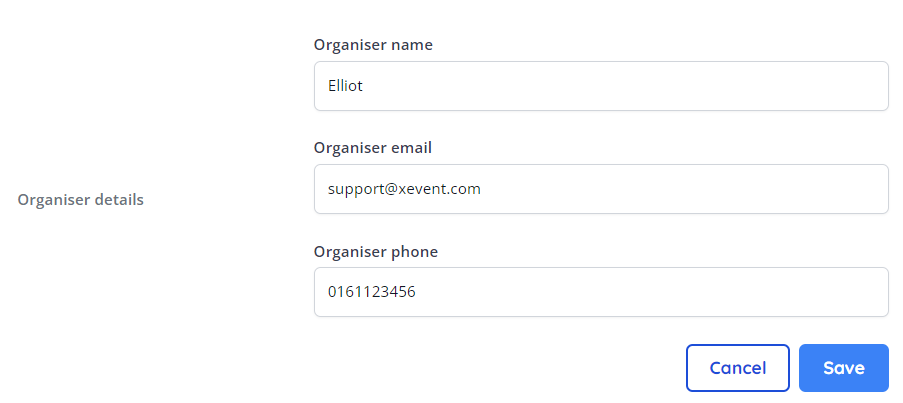
Organiser details - Add or edit the contact details of the event organiser. This can be used by customers to get in touch if they have a question
Tags - This input allows you to create tags that can assist in distinguishing your events from one another. These tags can be used as search terms on your shop site and can be used to categorise events with lie tags on your shop site listing pages.
To create a tag, type out the tag and hit enter to apply your new tag.

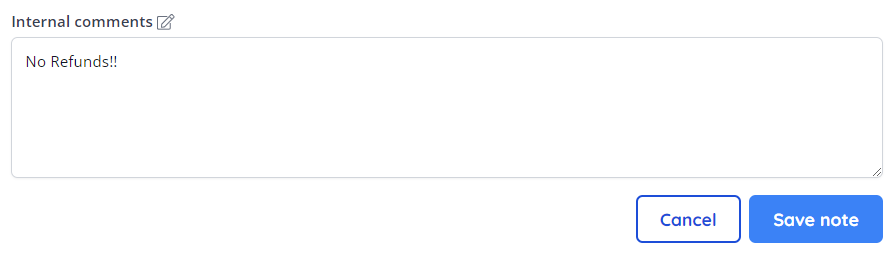
Internal comments - Internal comments can be added to the event as a bespoke message to other admin users.
Once all of your event settings are configured to your liking, please feel free to publish your event and start selling.
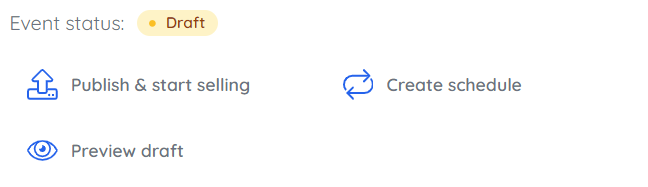
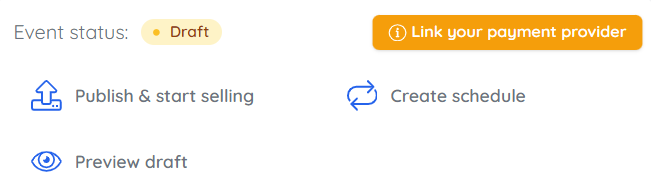
To do so, click "Publish and Start Selling" in the "Event Status" section:
Once published, the event status will display an "Upcoming" badge:
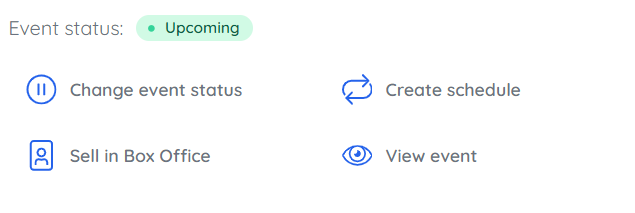
If you wish to change the status of your event, click "Change Event Status". In this pop-up, you have the following options:
Once your event is created, has at least one ticket, click here to learn how to customise your event's shop site and add your branding.

